
Composited Fields
To access this screen:
-
In the Tables window, right-click and select Format.
-
In the Columns in View window, click Add.
The Composited fields screen, part of the Column Wizard, is used to create a new composited data field based on a selected data column, and defines how the compositing calculation is performed.
Note: This screen is only shown if the field (or fields) selected in the Select Fields screen of the ColumnWizard can be composited.
To create a composited column in a table view:
-
In the Tables window, load an assays table.
-
Open the Table view by selecting View >> Data Tables from the menu.
Select a log table. With the table loaded, right-click the table and select Format.
-
Insert a new column into the table by selecting Format >> Columns and clicking Add.
-
On the (table) screen, select the Columns tab, and click Add.
-
In the Column Wizard, choose to add a Data Column and click Next.
-
Select an assay column, and click Next.
-
Choose one of the compositing methods - normally length weighted for assay results (default).
-
General: compute weighted average or dominant text depending on field type (numeric or text).
-
Weighted average: compute weighted average of numeric values.
-
Dominant text value: compute the dominant text value in the composite.
-
-
Select a compositing Weighting Method from one of the following options:
-
Length: weight values by length of sample.
-
Length x SG: weight values by the length x Specific Gravity of samples. If the Specific Gravity value of any sample in the composite is absent, the weighting method for that composite will revert to length weighting.
-
-
Select Filled histogram as the display style, and select End.
-
On the (table) screen, click Apply.
-
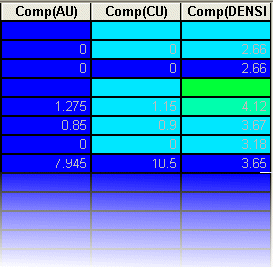
A new column (or columns) is displayed in the table - the prefix "Comp" is used to denote that it is a composited data column, for example:
Related topics and activities:
